
Over the next few weeks Salesforce will be rolling out security updates for all customers. If you haven’t noticed or been preparing this is your last call!
What’s Happening
A lot of people have been talking about these updates across the community, so hopefully this isn’t news. Here’s a quick list of critical changes coming soon (the whole list is longer, see article above):
- Phishing-Resistant MFA Enforcement for Privileged Users, Including Admins: Production release starting July 1, 2026, staggered over approximately 30 days.
- MFA Enforcement for All Employee Users: Production release starting July 20, 2026 staggered over approximately 30 days
- Step-up Auth for Report Activities: Production release starting July 1, 2026, staggered over approximately 30 days
The biggest, most important one to track is Phishing Resistant MFA (PRMFA) Enforcement for Privileged Users. If you are a Salesforce admin, and do not prepare for this update,you risk getting locked out of the org.
What’s the lowest bar to keep things running?
All admins, even those who use SSO to login, should setup PRMFA inside of Salesforce. If everything else fails, at least you’ll still be able to get in.
Salesforce recommends setting up passkey-based authentication.
- Turn on support for Phishing Resistant MFA:
- In your org go to Setup.
- Use the Quick Find box to find and select
Identity Verification. - Select
Let users verify their identity with a built-in authenticator such as Touch ID or Windows HelloandLet users verify their identity with a physical security key (U2F or WebAuthn) - Save the change.
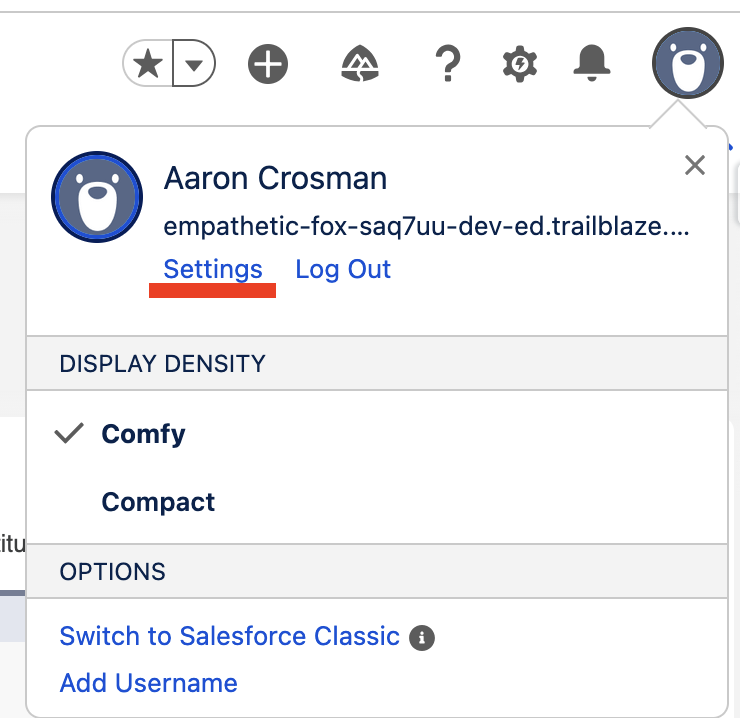

- Register your build-in authenticator (or passkey through something like 1Password).
- Go to your personal settings.
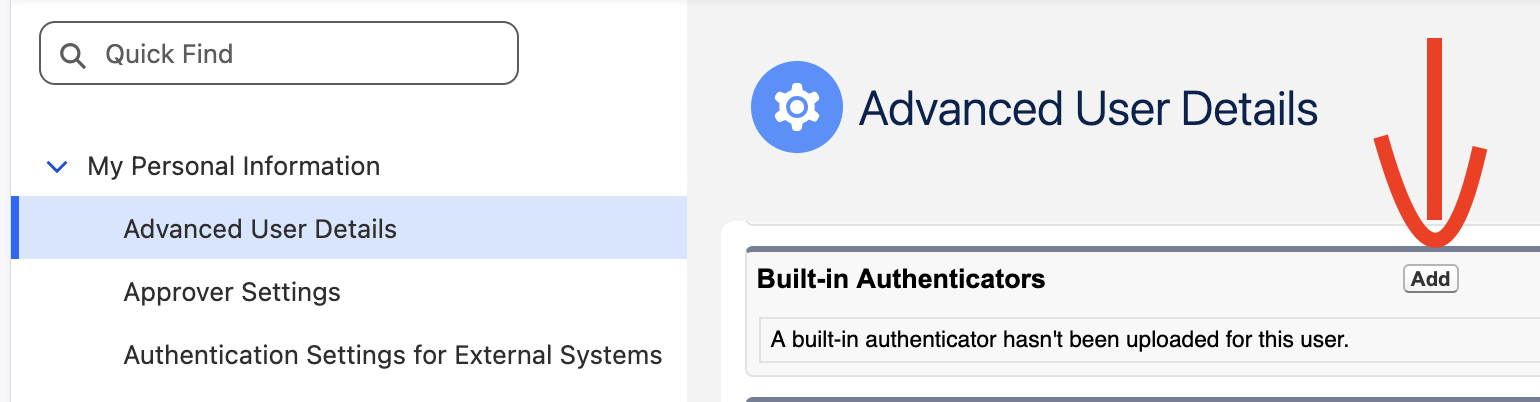
- Select Advanced User Details from Personal Information menu (on the left)
- Click the add button the Built-In Authenticators section (most of the way down the page)

- Will likely be prompted to verify your identity through an emailed code.
- At the prompt from Salesforce, click Register.
- You should then be prompted by the browser, and maybe your cloud-based password manager, to complete the process. This should be your last step.
How do I setup a second device?
This is harder to figure out than it feels like it should be. Option one, use a cloud-based solution (like 1Password or LastPass) to managed your passkey. Option two, use your phone to setup your PRMFA instead of the build-in for your laptop.
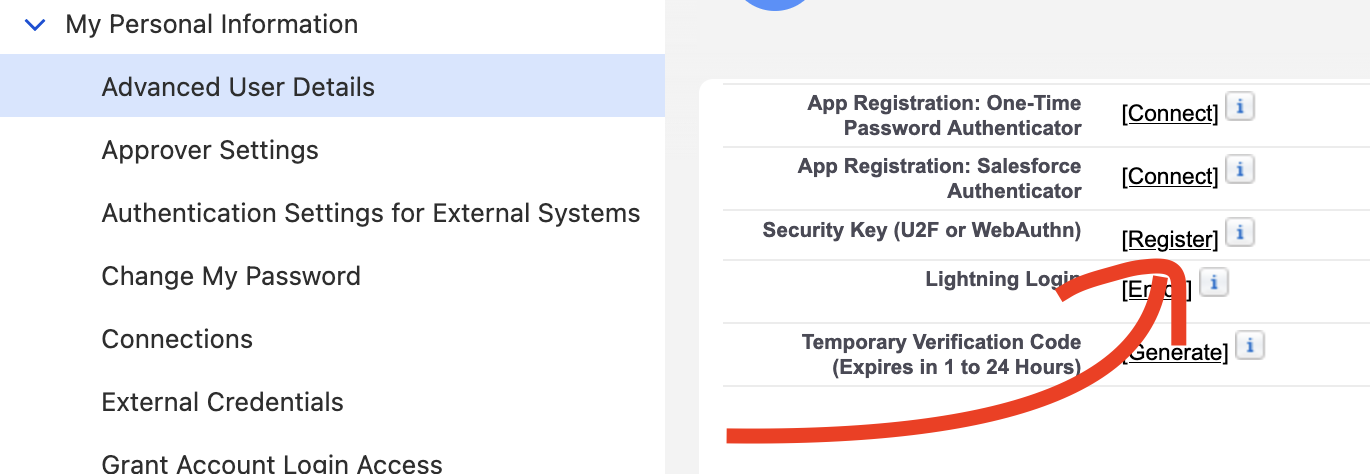
- Back on your Advanced User Detail screen click the register link for Security Key(U2F or WebAuthn) in the user detail section.
- Like with your build-in it should trigger an identity verification. This could be either an emailed code or your existing MFA.
- This should give you an option to scan a QR for a security key on a phone. Follow that process.
- Now when you login from a new device you should be able to use that phone instead of your original passkey.
- After entering username and password, Click “Use a Different Verification Method” link at the bottom of the page.
- Select the option to “Use Security Key”
- Select Scan QR Code, and scan with the phone you used for setup.
- Approve the request.
Support/My IT Team said I was fine
Hopefully they were right. A lot of IT folks, and Salesforce support, have been giving out the wrong answers. There is a lot of confusion out there, so please be extra cautious.
For step-up authentication you’ll need an MFA registered with Salesforce – they cannot trigger an MFA from your SSO provider. Basically, so the above steps are really close to the minimum bar you need for that too.
Go do it right now!
What else should I do?
- If you aren’t using a cloud-based password manager (like LastPass or 1Password), I strongly recommend setting up more than one device. This is particularly true for solo admins. Otherwise you risk getting locked out if your primary device fails or is stolen.
- Record you OrgId someplace. If you ever do get locked out, it’ll be easier to get a support ticket going if you have your OrgId (also for some reason Salesforce thinks we all do this, so might as well).
- Export a report, and see how the new step-up authentication system works. Document that, and tell your users.
When will it hit my org?
I don’t know.
I don’t know how to check.
Sorry.
There are some folks, including me, pressuring to get more details on this released to admins ASAP.
What I do know is that Salesforce always pushes updates in batches. They are not going to roll it every org on July 1st – very few will get it the first day. A few orgs will go first. Salesforce will wait a few days, then do another batch. This is how they always release updates. Chances are, you have a few days.
That said, don’t wait go setup PRMFA right now! For those who have a holiday weekend coming, don’t spend the weekend worrying, just get this done!
I need more time!!
Ask for it.
Salesforce is issuing 90-day extensions to customers who ask. If you need more time, open a support ticket and tell them. Then contact you AE and give them the case number so they can make sure it gets done.